Cron Job Not Running? How to Diagnose and Fix It
Troubleshoot cron jobs that won't run. Fix PATH issues, permission errors, script problems, cron daemon issues, and use logs to confirm cron is executing your jobs.
- cron
- crontab
- troubleshooting
- debugging
- linux
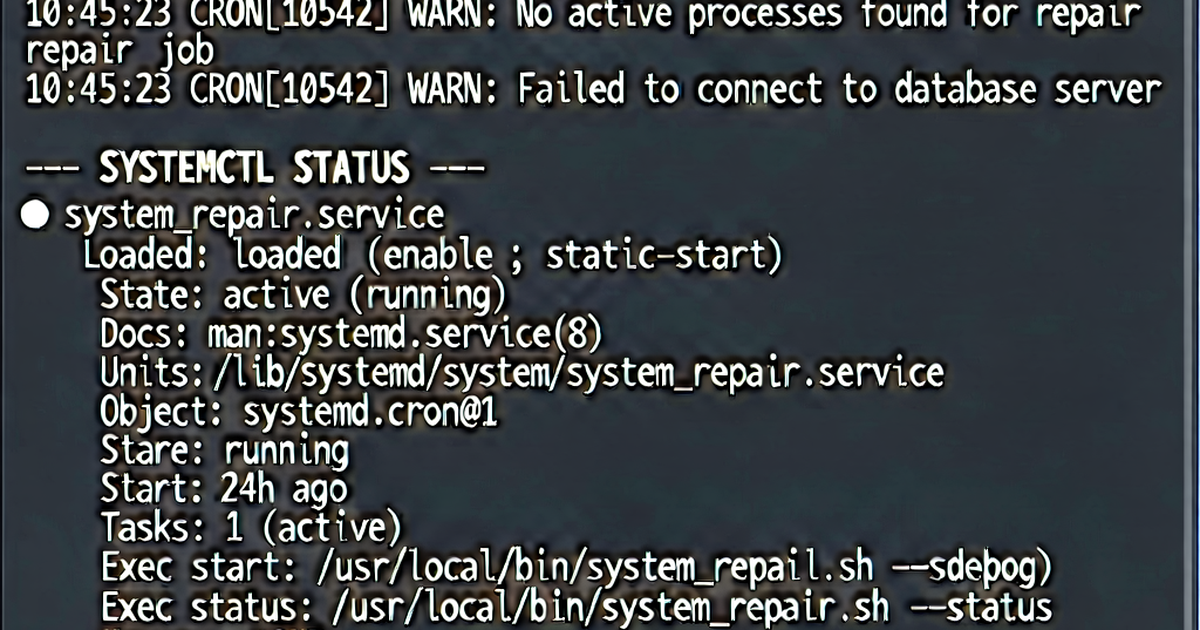

When a cron job doesn’t run, the cause is almost always one of a handful of problems. Work through this checklist systematically.
Step 1: Verify the cron daemon is running
# Debian/Ubuntu
systemctl status cron

# CentOS/RHEL/Rocky
systemctl status crond
If it’s not running:
sudo systemctl start cron
sudo systemctl enable cron   # start on boot
Step 2: Check the cron log
Cron logs every execution. If your job isn’t even appearing in the log, the schedule or daemon is the problem.
# Ubuntu/Debian
grep CRON /var/log/syslog | tail -30

# CentOS/RHEL
grep CRON /var/log/cron | tail -30

# journald (systemd systems)
journalctl -u cron | tail -30
journalctl -u crond | tail -30
If cron ran the job, you’ll see lines like:
Apr 25 14:05:01 hostname CRON[12345]: (ubuntu) CMD (/home/ubuntu/script.sh)If you see nothing, the expression is wrong or cron is not running.
Step 3: Validate your cron expression
Parse the expression carefully:
*/5 * * * * /script.sh
│   │ │ │ └── Day of week (0-7)
│   │ │ └──── Month (1-12)
│   │ └────── Day of month (1-31)
│   └──────── Hour (0-23)
└──────────── Minute (0-59)
Common mistakes:
0 */5 * * *— runs every 5 hours, not every 5 minutes30 2 * * 7— day-of-week 7 is Sunday in some implementations, check yours- Missing space between fields
- Using
%unescaped (see below)
Use crontab.io to validate the expression and see the next scheduled run times.
Step 4: The PATH problem
Cron runs with a minimal PATH: /usr/bin:/bin. Commands that work in your shell often fail in cron.
Test by running your command in a cron-like environment:
env -i HOME=/home/ubuntu PATH=/usr/bin:/bin /home/ubuntu/script.shFix by using full paths in your crontab:
# Wrong
*/5 * * * * python3 /home/ubuntu/sync.py

# Right
*/5 * * * * /usr/bin/python3 /home/ubuntu/sync.py
Find the full path of any command:
which python3
# /usr/bin/python3

which node
# /usr/local/bin/node
Or set PATH at the top of your crontab:
PATH=/usr/local/bin:/usr/bin:/bin
HOME=/home/ubuntu

*/5 * * * * python3 /home/ubuntu/sync.py
Step 5: Script is not executable
ls -la /home/ubuntu/script.sh
# -rw-r--r-- ← no execute permission
Fix:
chmod +x /home/ubuntu/script.shOr call the interpreter explicitly instead of relying on the shebang:
*/5 * * * * /bin/bash /home/ubuntu/script.sh
*/5 * * * * /usr/bin/python3 /home/ubuntu/script.py
Step 6: Script errors hidden by output suppression
If you’ve redirected output to /dev/null, errors are swallowed:
*/5 * * * * /script.sh > /dev/null 2>&1 ← errors invisibleTemporarily log everything to diagnose:
*/5 * * * * /script.sh >> /tmp/cron-debug.log 2>&1Then check:
cat /tmp/cron-debug.logStep 7: Percent sign (%) in commands
In crontab, unescaped % is interpreted as a newline. This breaks commands that use %:
# Wrong: % in date breaks the command
0 0 * * * cp file.txt backup-$(date +%Y%m%d).txt

# Right: escape the %
0 0 * * * cp file.txt backup-$(date +\%Y\%m\%d).txt
Step 8: Relative paths
Cron’s working directory is not your home directory — it’s usually /. Relative paths don’t work:
# Wrong: relative path
*/5 * * * * ./script.sh
*/5 * * * * scripts/sync.py

# Right: absolute path
*/5 * * * * /home/ubuntu/script.sh
*/5 * * * * /home/ubuntu/scripts/sync.py
Step 9: Environment variables not loaded
.bashrc, .bash_profile, and .profile are not sourced by cron. If your script depends on env vars set there:
# Source profile explicitly in the script
#!/bin/bash
source /home/ubuntu/.profile
# or
source /etc/environment

# Or define env vars in the crontab
MY_API_KEY="secret"
*/5 * * * * /home/ubuntu/sync.py
Step 10: Permission to access files/directories
Even if the script runs, it may fail silently if it can’t read/write files:
# Test as the cron user
sudo -u ubuntu /home/ubuntu/script.sh
Check ownership and permissions on any files the script touches.
Quick diagnostic script
Save this as /tmp/cron-test.sh and add it to your crontab for 1 minute to verify cron can run jobs:
#!/bin/bash
echo "Cron ran at $(date)" >> /tmp/cron-test-output.log
echo "PATH=$PATH" >> /tmp/cron-test-output.log
echo "USER=$USER" >> /tmp/cron-test-output.log
echo "HOME=$HOME" >> /tmp/cron-test-output.log
chmod +x /tmp/cron-test.sh
crontab -e
# Add: * * * * * /tmp/cron-test.shWait 1 minute, then check /tmp/cron-test-output.log. If it exists, cron is working.
Build valid cron expressions at crontab.io.

Related reading
-
Cron Expression Examples: 40+ Ready-to-Use Schedules
Copy-paste cron expressions for common schedules: every 5 minutes, hourly, daily, weekly, monthly, business hours, weekdays, and more with explanations.
-
Crontab Syntax: A Complete Reference for Cron Expressions
Master crontab syntax with this complete reference. Learn the 5-field cron format, special characters, @reboot/@daily shortcuts, and common schedule patterns.
-
Linux Crontab Tutorial: From Basics to Real Automation
Complete Linux crontab tutorial for beginners. Learn to create, edit, list, and remove cron jobs. Covers syntax, environment setup, logging, and practical examples.